Your license key looks like this: AUDT-XXXXX-XXXXX-XXXXX-XXXXX. It arrives by email right after purchase, and it’s also shown on screen as soon as you buy. One license covers every Mac you use.
Entering the key
Audiout asks for the key on first launch, beside the offer of a free trial. If you started the trial instead, or you’re moving to a new Mac:
- Open Settings › License.
- Click “Enter license…”. A sheet opens, titled “Enter your license key”.
- Paste or type the key and confirm.
The sheet explains what the key is for: “Your license links this official build to your purchase and keeps it updated. Building Audiout from source is always free.”
Once a key is stored, the button reads “Change…” instead. Use it to swap in a different key at any time.
What the status messages mean
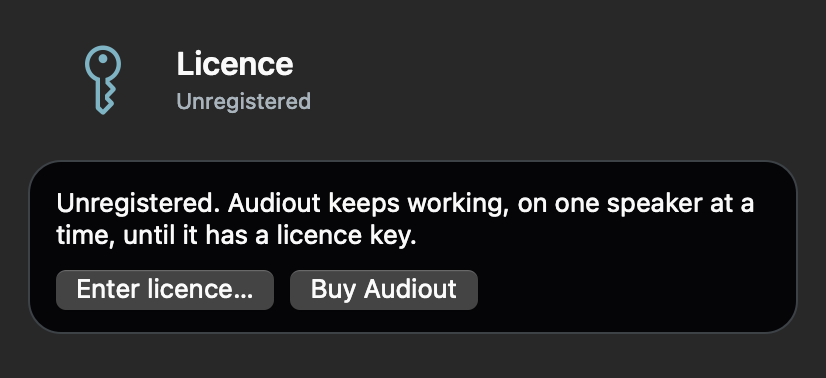
Settings › License shows one of these lines:
- “Registered. Thank you for supporting Audiout.” Everything is fine.
- “Your trial has ended. Audiout plays on one speaker at a time until you buy.” The free trial is over and no purchased key is entered. Audiout keeps working on one speaker at a time, with scenes and Bluetooth alignment switched off. See Audiout only plays on one speaker after the trial.
- “This key was refunded, so Audiout plays on one speaker at a time.” The purchase behind this key was refunded, so the key no longer counts. The same line can start “This key’s payment was reversed” or “This key was revoked”. If you think that’s wrong, write to support@audiout.app. Details on refunds are on the refund page.
- “This key isn’t recognized. Check it against your receipt.” The key doesn’t match any purchase, and Audiout plays on one speaker at a time until you enter one that does. The usual cause is a typo. Compare it character by character with the email receipt.
- “Unregistered. Audiout keeps working, on one speaker at a time, until it has a license key.” No key is stored.
- “That doesn’t look like an Audiout key (AUDT-…).” What you entered isn’t shaped like a key at all. Make sure you pasted the key itself, not the order number.
If the license server can’t be reached (no internet, or the server is down), the key is saved anyway and the pane shows “Your key is saved. Audiout hasn’t been able to verify it yet.” with a “Check again” button. Nothing is lost. Click “Check again” once you’re back online.
The “Enter your license key” sheet words its verdicts slightly differently, for example “This key was refunded. Buy a new one to keep using Audiout.” They mean the same thing.
Lost your key?
Two ways to get it back:
- On the first-launch window, click the “I lost my key” link. Audiout emails the key to the address you bought with.
- Or use the resend page on this site at /resend.
Both send to the purchase address, so check that inbox (and its spam folder). If you no longer have access to the address you bought with, email support@audiout.app.
Removing the key
Open Settings › License, click “Change…”, then click “Remove license…” in the sheet. Audiout warns you first: the app keeps working for now, but it will ask for a key the next time it opens and stops getting official updates until you enter one. Without a key, it plays on one speaker at a time.
Removing the key doesn’t cancel anything — you can enter the same key again later. It’s mainly useful when handing a Mac to someone else.
For anything else, browse the other support articles or get in touch at support@audiout.app.