The Speakers tab lists every speaker Audiout knows about, including the ones it can’t reach right now. It is where you decide which of them the Mixer shows, and where each speaker’s equalizer lives.
Three ways in: press ⌘3 with the panel open, click “Manage speakers…” at the top of the Mixer’s Output Speakers card, or right-click the menu bar icon and choose “Speakers”.
The sidebar
The sidebar has two sections. “System Audio” holds the page for Main Audio. “Speakers” starts with an Overview page, then lists your speakers in two groups. Speakers under “Shown in Mixer” appear in the Mixer. Speakers under “Hidden unless in use” stay out of it until they are playing.
In each group, speakers your Mac can reach come first. The rest sit below a divider such as “2 unavailable”.
Drag a speaker from one group to the other to move it. Right-click a speaker for “Hide from Mixer” or “Show in Mixer”, “Show even when unavailable”, and “Speaker settings…”. Select several speakers first to change them all at once.
Show in Mixer
Every speaker has a Show in Mixer setting with three choices:
- When available, the default. The Mixer lists the speaker while your Mac can reach it, so a speaker that is switched off or out of range drops out.
- Always. The Mixer lists it even when your Mac can’t reach it. This is the same as “Show even when unavailable” in the sidebar.
- Hide when not in use. The Mixer lists it only while it is in use.
A speaker that is in use always shows, whatever its setting. That covers a speaker in Main Audio, one an app is routed to, and one Audiout is reconnecting. This Mac always shows too.
You can change the setting in three places: the pop-up on the speaker’s page, the sidebar’s right-click menu, or the Show in Mixer section of the speaker row’s right-click menu in the Mixer.
The Overview page
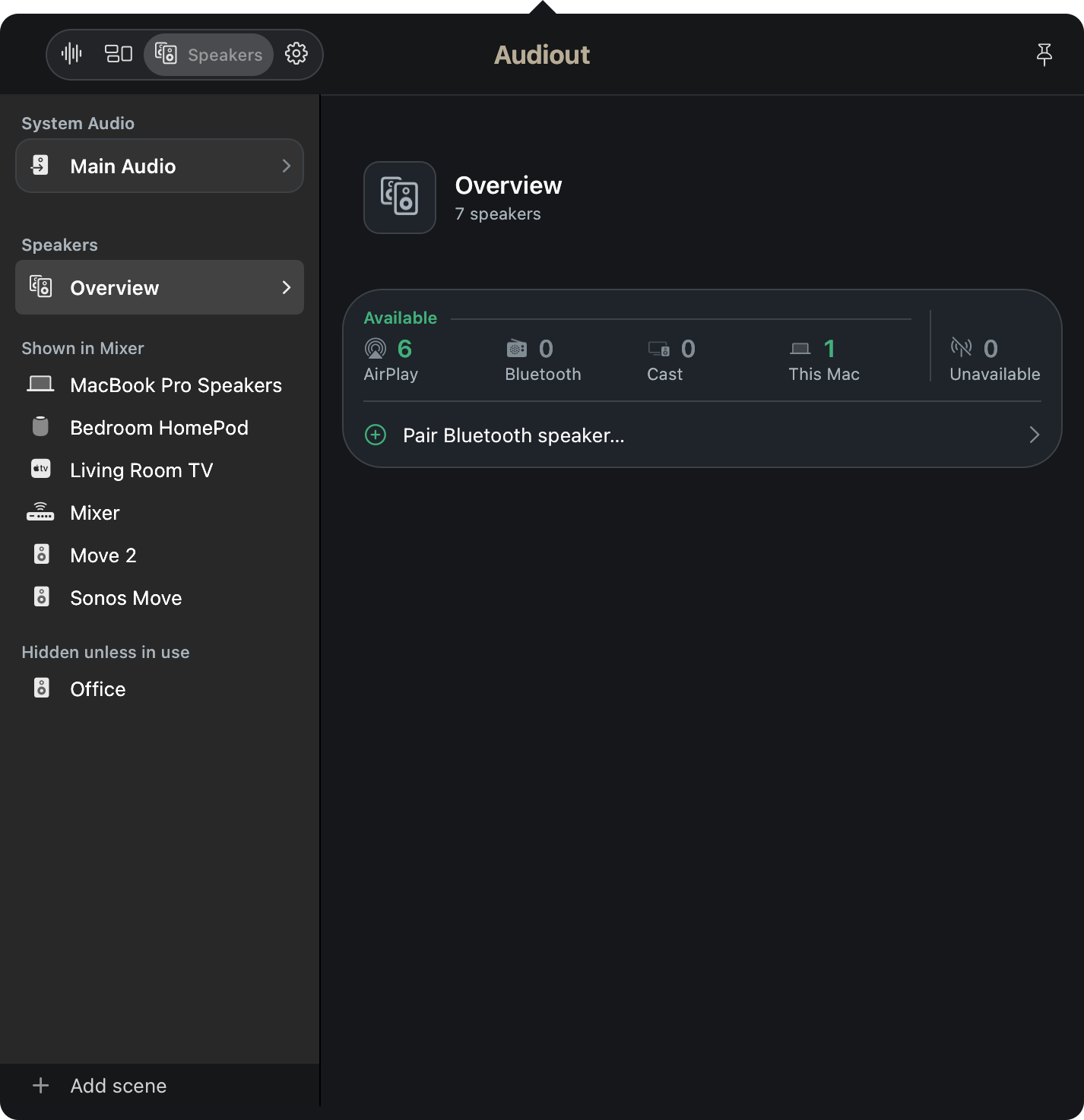
Overview counts the speakers your Mac can see right now: AirPlay, Bluetooth, Cast and This Mac under “Available”, plus a count of unavailable ones. Hover over a count for what it includes.
Below the counts, a row appears only when there is something to do:
- “Local Network access is off”, with “Open Privacy Settings…”. Without Local Network access, Audiout can’t see AirPlay or Cast speakers.
- “Bluetooth access is off”, with a button to allow it. Without Bluetooth access, paired speakers that aren’t connected don’t appear.
- “Forget 1 speaker…” (or “Forget 3 speakers…” and so on), for remembered speakers that haven’t appeared since Audiout opened. See Forgetting a speaker below.
- “Pair Bluetooth speaker…”, which opens Bluetooth settings so you can pair a new one.
A speaker’s page
Click a speaker in the sidebar to open its page. You get the same page from “Speaker settings…” or “Equalizer…” on the speaker’s row in the Mixer.

Under the name, a caption gives the kind of speaker and its state, for example “Sonos · Ready”. The other states are “Connected”, “Not connected” (a Bluetooth speaker that is paired but not connected), “Unavailable”, “Connecting…”, “Waiting for password” and “Can’t be found”.
The page holds:
- Equalizer, open when the page opens. The per-speaker equalizer covers it.
- Show in Mixer, with a line saying what the current choice does.
- Scenes, a link to each saved scene the speaker belongs to.
- Password or Pairing, only when one is saved, with a Forget button. See AirPlay speaker or TV asks for a password or code.
- Control speaker volume, on Bluetooth speakers only. When it is on, the volume slider moves the speaker’s own volume.
Forgetting a speaker
Audiout remembers every speaker it has seen, so a speaker you sold or unplugged for good can linger in the list. Forget clears its name, its Show in Mixer setting and its place in your scenes.
Forget is only offered for a speaker marked “Can’t be found”, meaning it hasn’t appeared since Audiout opened. Three ways to do it:
- Click the Forget button on the speaker’s page.
- Right-click it in the sidebar and choose Forget, or select it and press ⌘-Delete.
- Click “Forget 3 speakers…” on the Overview page to forget every speaker that can’t be found.
The confirmation says how many scenes the speaker will be removed from. If the speaker turns up again later, it comes back to the speaker list, but not to those scenes.
Audiout won’t forget a speaker in two cases. If it is the only speaker left in a scene, delete that scene first. If Main Audio or an app is still set to play on it, change that in the Mixer first.
Pairing a Bluetooth speaker
Click “Pair Bluetooth speaker…” on the Overview page, or the same button at the bottom of the Mixer’s Output Speakers card. Both open macOS’s Bluetooth settings, where you pair the speaker as usual. Once it connects, it appears in Audiout’s list.
How each kind of speaker behaves is in What works with each kind of speaker. The Mixer itself is covered in The mixer: Main Audio, faders, and meters. All articles are at the support overview.